Computing
Make your laptop feel fast again
Inspect startup apps in Task Manager or Login Items and disable only software you recognize.
Clear explanations. Practical next steps. 59 ways to get more from your tech.
Inspect startup apps in Task Manager or Login Items and disable only software you recognize.
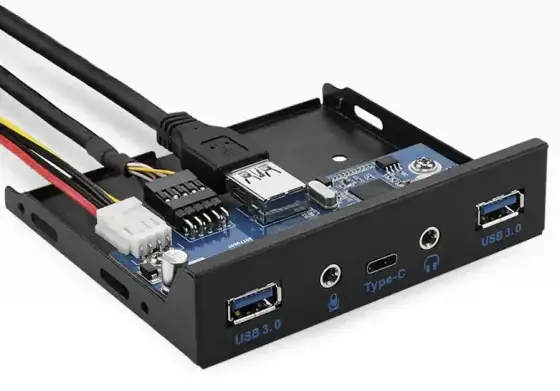
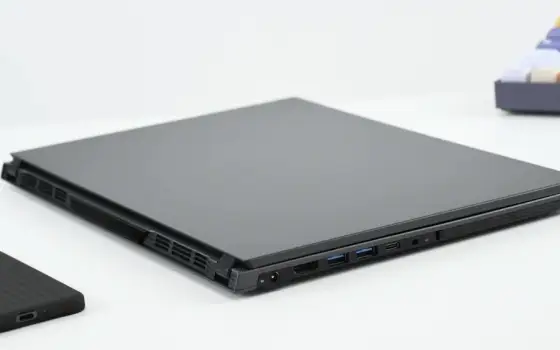
Match memory capacity and port selection to the applications you actually use.
Move project files into named folders and keep only active work on the desktop.
Sort processes by memory usage and watch how totals change during a normal task.
Place the laptop on a firm surface and clear the space around its air vents.
Use the operating system battery report and compare full charge capacity with design capacity.
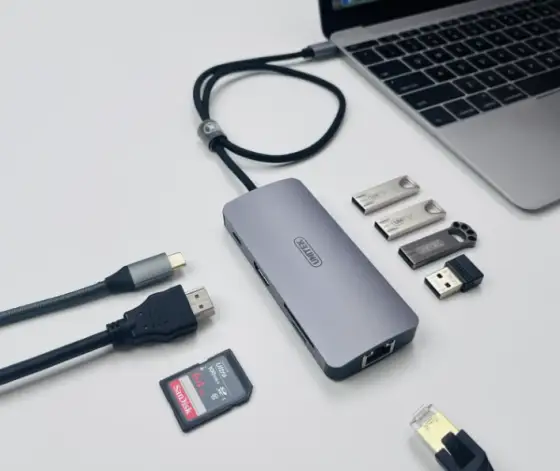
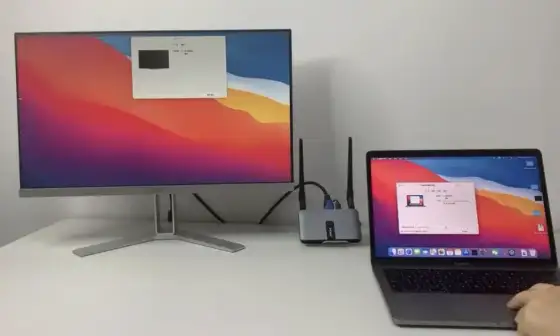
Connect the display and input devices directly before adding a docking station.
Compare resolution and physical screen size together and inspect text at normal viewing distance.
Check that the computer is sending the native panel resolution and use a direct digital connection.
Check the computer display output limit and the dock specifications before buying adapters.
Read the device specifications for charging power and supported data speeds.
Confirm support for your operating system and the number of external displays you need.
Review power and screen timeout settings before the session begins.
Turn the display off and use a clean microfiber cloth with minimal moisture.
Consider desk width and whether you regularly need a number pad.
Check the active input language and keyboard layout before replacing hardware.
Check battery charge and move the receiver away from sources of radio interference.
Adjust pointer speed and review gesture settings gradually.
Separate processor family from exact model and compare installed memory with storage capacity.
Check the motherboard supported memory generation and available slots.
Identify whether your applications need a dedicated graphics processor or mostly display documents.
Inspect ports and hinges and confirm that the device can be reset without a previous owner account.
Back up required files and sign out of services before using the supported erase process.
Wait briefly for disk activity to settle and try saving through the application menu.
Measure the delay from power on to a usable desktop and inspect startup applications.
Compare readings under the same workload and consult the processor manufacturer operating limits.
Use the component power requirements and the correct connector types to narrow the choice.
Identify whether the sound comes from fans or a mechanical drive before changing settings.
Place the main display directly in front of you and align screen tops where practical.
Set each display to its native resolution and adjust scaling independently.
Prioritize reliable exposure and a useful field of view for your room.
Check operating system camera permissions and close other software that may be using it.
Use a separate standard account and keep administrative credentials private.
Reserve administrative access for software installation and system maintenance.
Give each person a separate account and agree on a shared folder for common files.
Lower display brightness and close background tasks that are not needed for the trip.
Check the required output voltage and charging protocol in the device documentation.
Use a charger with the correct specifications and keep it uncovered during use.
Select the correct monitor input and reconnect the cable with both devices awake.
Connect external power and input devices and review the operating system lid behavior.
Match the drive interface and physical size to the enclosure specifications.
Read the warranty terms for accidental damage and user installed parts.
Compare the exact motherboard model with the component support documentation.
Label both ends of important cables and separate power leads from frequently moved accessories.
Raise the screen with a stable stand and use external input devices when practical.
Read the system information screen or manufacturer label without posting identifiers publicly.
Read the manufacturer release notes for your exact computer or motherboard model.
Compare memory capacity and display quality against the requirements of your editing application.
Match memory and storage to your editor and the development environments you run.
Inspect external connections and allow power to stabilize before restarting equipment.
Compare how each supported power state preserves your session and uses battery power.
Schedule software updates and backup checks around a time when the computer is available.
Adjust pointer speed using one familiar application and keep the mouse surface unchanged while you compare settings.
Identify whether the top keyboard row controls media functions or application shortcuts by default and check the manufacturer instructions for changing that behavior.
Compare the exact display output, cable and monitor input specifications before selecting a higher refresh rate in system settings.
Connect suitable power and check airflow, camera framing and microphone selection before starting an extended call.
Check the keyboard supported connection modes and label the device channels before pairing it with multiple computers.
Find the official service instructions for the exact model and review required tools, power precautions and component access before removing any screws.
Photograph the external connections and label essential cables before disconnecting the workstation.