Computing
Make your laptop feel fast again
Inspect startup apps in Task Manager or Login Items and disable only software you recognize.
Clear explanations. Practical next steps. 434 ways to get more from your tech.
Inspect startup apps in Task Manager or Login Items and disable only software you recognize.
Match memory capacity and port selection to the applications you actually use.
Move project files into named folders and keep only active work on the desktop.
Sort processes by memory usage and watch how totals change during a normal task.
Place the laptop on a firm surface and clear the space around its air vents.
Use the operating system battery report and compare full charge capacity with design capacity.
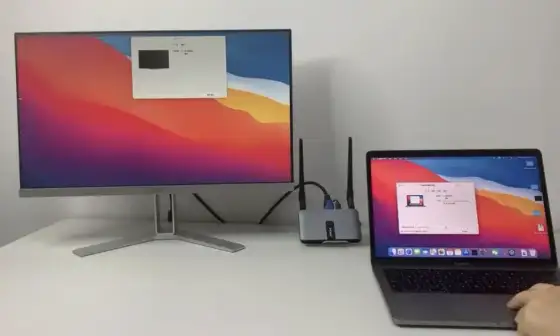
Connect the display and input devices directly before adding a docking station.
Compare resolution and physical screen size together and inspect text at normal viewing distance.
Check that the computer is sending the native panel resolution and use a direct digital connection.
Check the computer display output limit and the dock specifications before buying adapters.
Read the device specifications for charging power and supported data speeds.
Confirm support for your operating system and the number of external displays you need.
Review power and screen timeout settings before the session begins.
Turn the display off and use a clean microfiber cloth with minimal moisture.
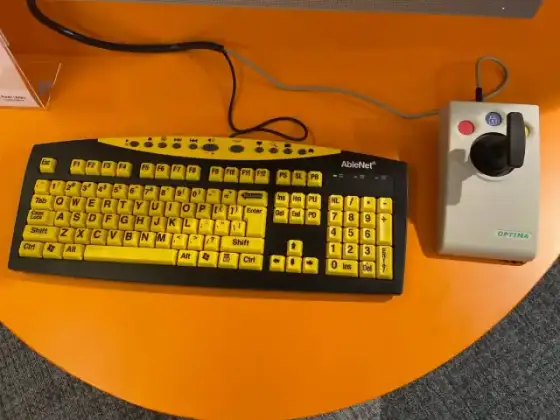
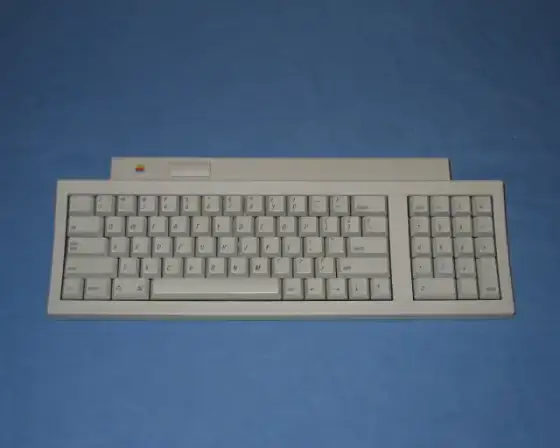
Consider desk width and whether you regularly need a number pad.
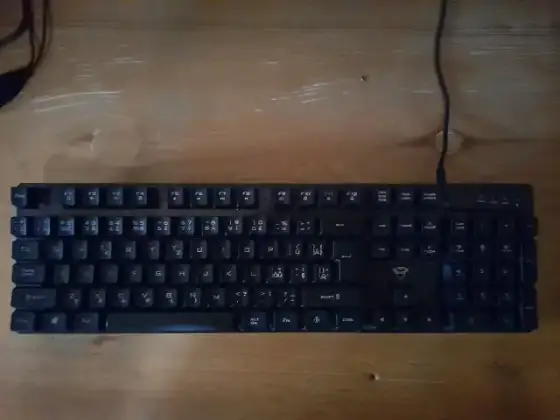
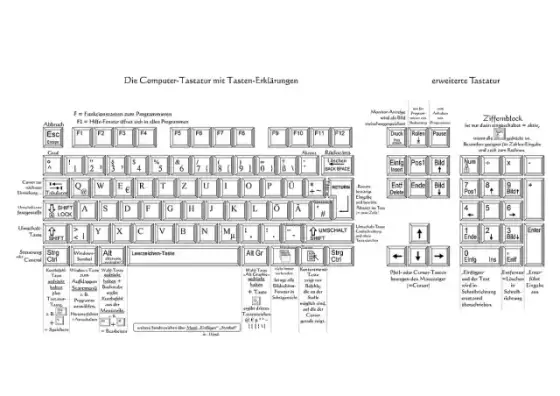
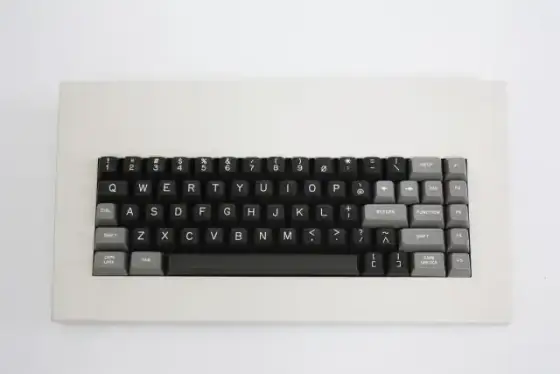
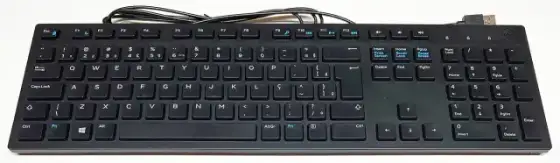
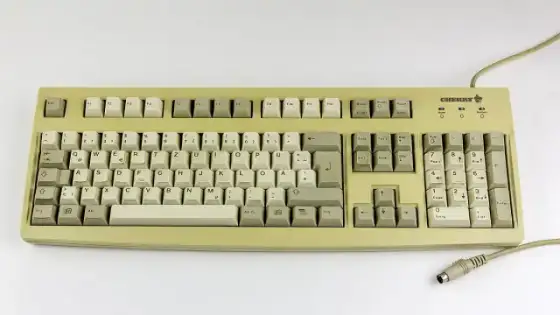
Check the active input language and keyboard layout before replacing hardware.
Check battery charge and move the receiver away from sources of radio interference.
Adjust pointer speed and review gesture settings gradually.
Separate processor family from exact model and compare installed memory with storage capacity.
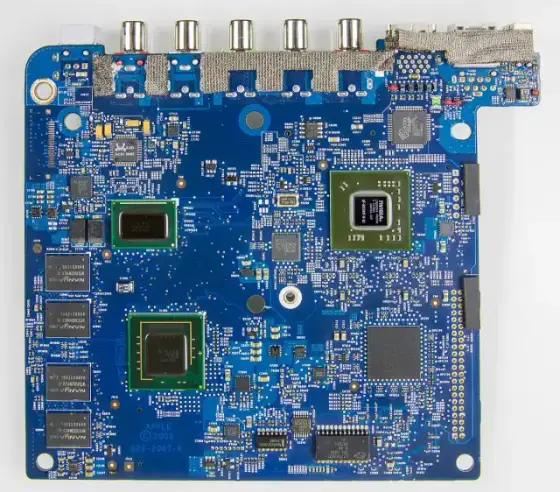
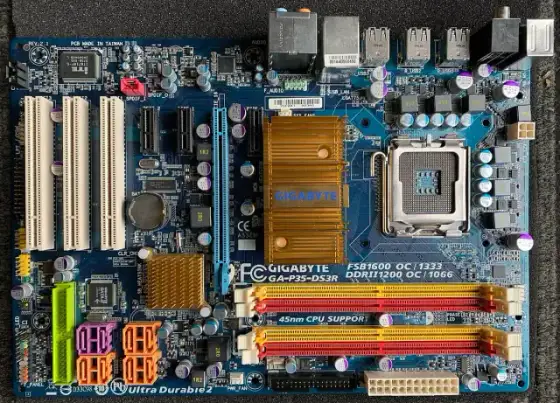
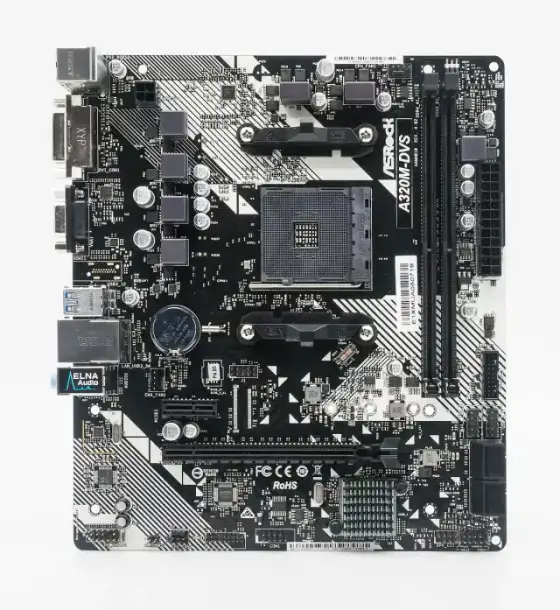
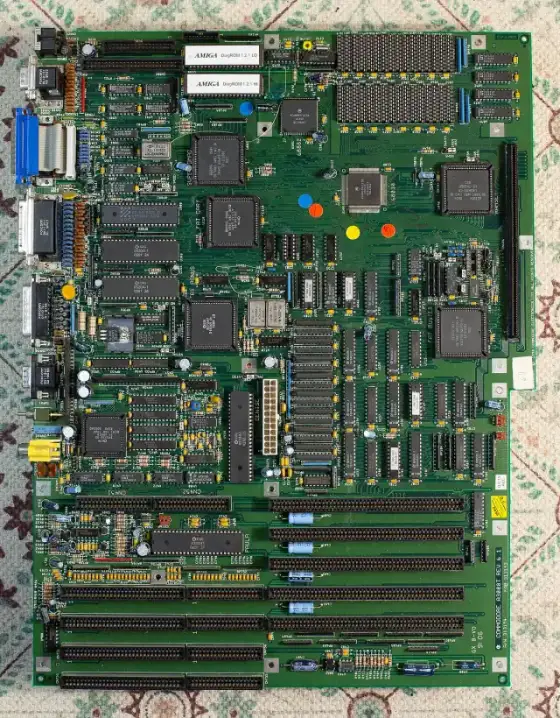
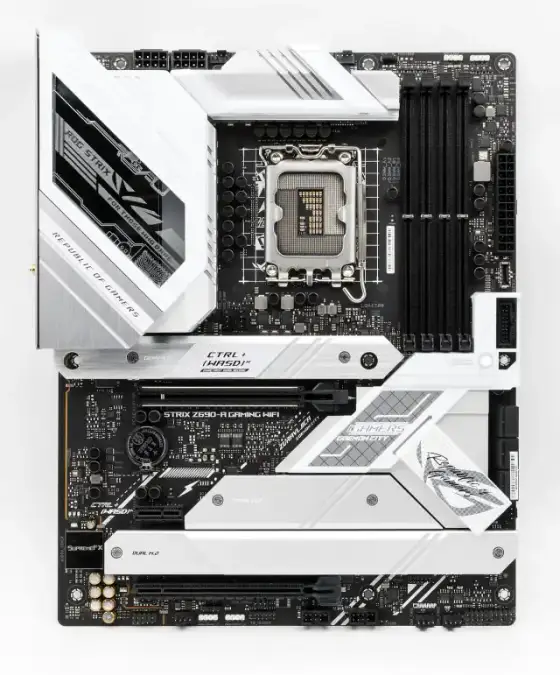
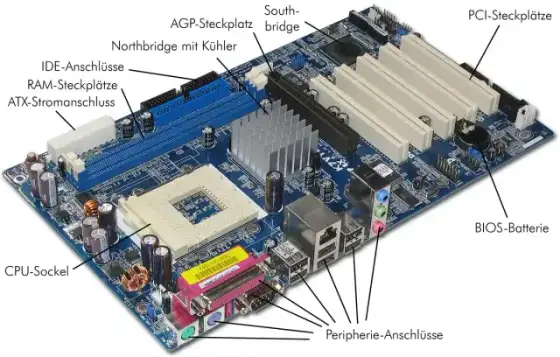
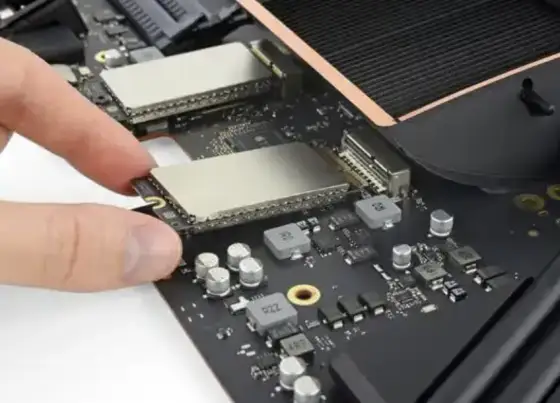
Check the motherboard supported memory generation and available slots.
Identify whether your applications need a dedicated graphics processor or mostly display documents.
Inspect ports and hinges and confirm that the device can be reset without a previous owner account.
Back up required files and sign out of services before using the supported erase process.
Wait briefly for disk activity to settle and try saving through the application menu.
Measure the delay from power on to a usable desktop and inspect startup applications.
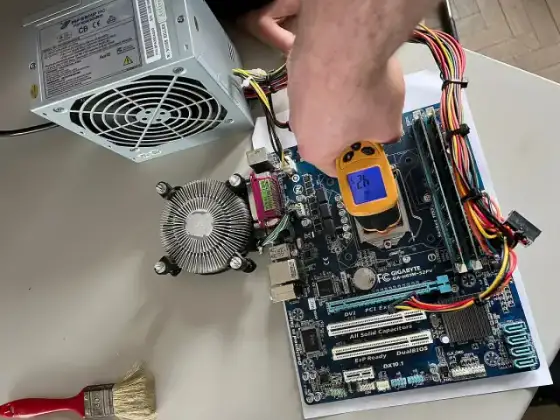
Compare readings under the same workload and consult the processor manufacturer operating limits.
Use the component power requirements and the correct connector types to narrow the choice.
Identify whether the sound comes from fans or a mechanical drive before changing settings.
Place the main display directly in front of you and align screen tops where practical.
Set each display to its native resolution and adjust scaling independently.
Prioritize reliable exposure and a useful field of view for your room.
Check operating system camera permissions and close other software that may be using it.
Use a separate standard account and keep administrative credentials private.
Reserve administrative access for software installation and system maintenance.
Give each person a separate account and agree on a shared folder for common files.
Lower display brightness and close background tasks that are not needed for the trip.
Check the required output voltage and charging protocol in the device documentation.
Use a charger with the correct specifications and keep it uncovered during use.
Select the correct monitor input and reconnect the cable with both devices awake.
Connect external power and input devices and review the operating system lid behavior.
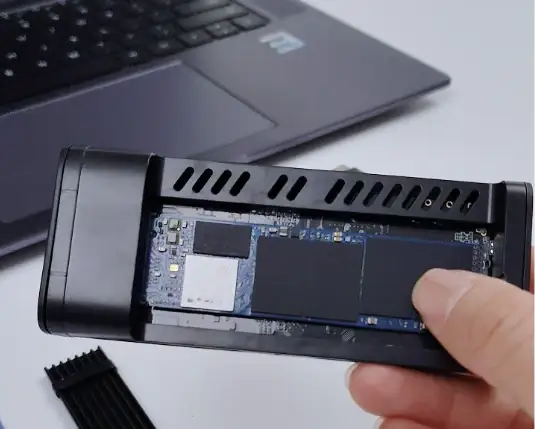
Match the drive interface and physical size to the enclosure specifications.
Read the warranty terms for accidental damage and user installed parts.
Compare the exact motherboard model with the component support documentation.
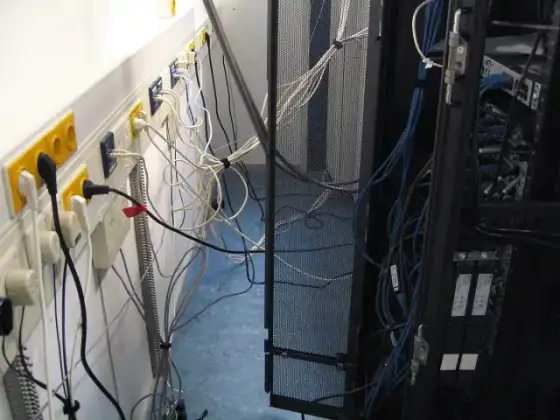
Label both ends of important cables and separate power leads from frequently moved accessories.
Raise the screen with a stable stand and use external input devices when practical.
Read the system information screen or manufacturer label without posting identifiers publicly.
Read the manufacturer release notes for your exact computer or motherboard model.
Compare memory capacity and display quality against the requirements of your editing application.
Match memory and storage to your editor and the development environments you run.
Inspect external connections and allow power to stabilize before restarting equipment.
Compare how each supported power state preserves your session and uses battery power.
Schedule software updates and backup checks around a time when the computer is available.
Review the storage breakdown and remove downloaded media you can obtain again.
Inspect battery usage by application and reduce background activity for apps you rarely need.
Create a current backup and confirm that your authentication methods will transfer.
Back up your data and remove accounts using the device supported reset process.
Match the cable power rating and connector type to the charger and phone.
Check the charging protocols supported by both the phone and the power adapter.
Use the owner account and review accessibility settings together.
Disable alerts for low priority applications and keep calls from important contacts available.
Enable the operating system device finding feature before you need it.
Check access to camera and contacts and limit permissions to what each application needs.
Increase text size and check contrast and display zoom settings.
Set a strong hotspot password and check the mobile plan tethering allowance.
Check airplane mode and the active SIM before restarting the device.
Compare signal reliability and your data allowance for the task at hand.
Check whether the exact phone model and mobile carrier support the service.
Read the authenticator provider transfer instructions and save recovery codes first.
Create albums for projects and use favorites for images you need frequently.
Choose an original quality transfer method when resolution matters.
Place the document on a flat surface in even light and use a trusted scanning tool.
Use stable lighting and put the phone on a secure support near eye level.
Charge both devices and remove an old pairing only after checking the accessory instructions.
Use the system file manager to locate downloads and sort by size.
Review precise location and background location access separately.
Use the built in medical or emergency information feature if supported.
Match the exact phone model and inspect protection around the screen and camera.
Unplug the device and follow the manufacturer guidance for cleaning materials.
Read the specific model rating and the manufacturer exclusions for liquid damage.
Keep the device out of direct sunlight and reduce unnecessary background activity.
Download the required area over a trusted connection and verify coverage before departure.
Confirm roaming charges and device compatibility with your carrier.
Label the lines and choose defaults for calls and mobile data.
Review subscriptions through the official app store and service account pages.
Enable trusted store updates and leave room for downloaded installation files.
Look up the exact model support policy on the manufacturer website.
Compare screen size and keyboard support with the documents you normally use.
Download essential files and test the keyboard and video call setup before leaving.
Group applications by task and remove shortcuts that you rarely use.
Allow selected contacts and test repeat call behavior if your system supports it.
Inspect recent permission access and compare it with your actual application use.
Use the operating system supported app restriction or guided access feature.
Select the upload quality and connection rules deliberately.
Check whether deleting a file on the phone also removes the cloud copy.
Inspect the cable and charger and try a known working compatible set.
Check device compatibility and remove accessories that prevent proper alignment.
Save important pages as bookmarks before closing large groups of tabs.
Enable supported reachability settings and rearrange frequently used controls.
Check device eligibility and make a backup before a major upgrade.
Start with the official account recovery page on a trusted device.
Decide whether offline access and export matter before selecting an application.
Download files from trusted senders and choose a reader with text search.
Set a lower mobile streaming quality and disable automatic downloads when appropriate.
Verify the exact model and test cameras and charging with the seller present.
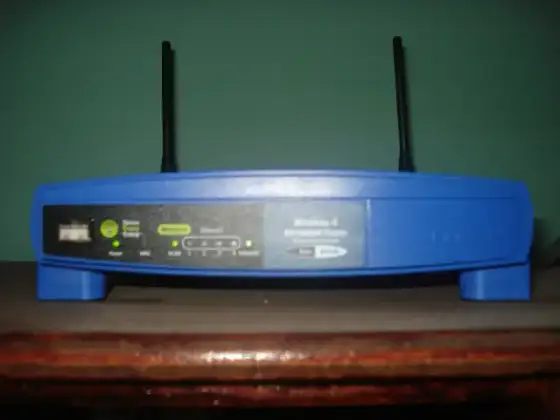
Place the router in an open central position away from large metal objects.
Place satellite units where they can still receive a strong connection to the main unit.
Compare a wired connection with a wireless connection using the same device.
Enable the router guest network and choose a different password from the main network.
Compare range and congestion for the bands supported by your router and device.
Use a cable category suitable for the network speed and cable length.
Run a test with large background transfers paused and note the connection type.
Test whether the problem changes on a wired connection and close large uploads.
Identify which device connects to your provider and which manages the local network.
Follow provider instructions and allow each device time to reconnect.
Use the local router management interface and save a unique password securely.
Check the exact hardware version and use the manufacturer supported update method.
Select the strongest encryption mode supported by your required devices.
Move the router away from crowded electronics and inspect nearby network congestion.
Confirm the network password and check whether the device supports the configured security mode.
Separate the job of finding a site address from the connection to the site itself.
Review privacy practices and compatibility with any filtering you need.
Compare the exact address on another browser and inspect the error message.
Compare response time consistency during calls and games rather than focusing only on bandwidth.
Evaluate a properly installed cable before relying on a distant wireless signal.
Count the wired devices and match port speed to the equipment you own.
Use a compatible Ethernet adapter and verify that the operating system recognizes it.
Keep the built in firewall enabled and review any exceptions deliberately.
Use a supported service with strong authentication and minimal exposed ports.
Use a trustworthy provider and remember that a VPN does not make malicious sites safe.
Confirm the network name with the venue and avoid unexpected software installation prompts.
Check the accommodation rules and configure a unique administrator password before travel.
Use the manufacturer setup process and keep the printer on a network your computer can reach.
Check whether the device uses local control or depends on a cloud service.
Record router and switch connections and identify important devices by role.
Distinguish the local address assigned to a device from the address visible to internet services.
Reserve an address through the router rather than guessing an unused static address.
Return a client to automatic address assignment while checking router reservations.
Match coverage and device support to the actual floor plan.
Create temporary guest credentials and test internet access before visitors arrive.
Use provider and router counters with attention to the measurement period.
Test a direct wired connection where possible and inspect available wireless signal.
Check the negotiated link rate in the device network settings.
Compare how each option connects to the main router and handles roaming.
Check power and cable placement and allow the equipment to reconnect.
Identify which traffic matters and read the router implementation details.
Test video calls and file uploads from the actual desk position.
Check indoor carrier coverage and your plan data limits.
Open a normal browser window to complete the venue official network sign in.
Check device distance and supported frequency bands in the manufacturer documentation.
Save the current configuration and confirm that you have provider connection details.
Confirm that devices are on the intended trusted network and that discovery is allowed.
Plan for coverage in occupied rooms and a reliable connection back to the router.
Use unique credentials and install supported firmware updates.
Look for events that match the time of a real connection problem.
Record the affected devices and whether local connections still work.
Choose a reputable manager and protect the master account with a strong unique password.
Use the password manager generator for each account rather than adapting one familiar pattern.
Check how your device or password manager stores and synchronizes the passkey.
Prefer a supported authenticator or security key and store recovery codes securely.
Open the service through a saved bookmark and review account activity directly.
Inspect the actual destination domain and watch for misleading spellings.
Use a trusted device to change the password and revoke unfamiliar sessions.
Keep codes in a protected offline location or an appropriately secured password manager.
Remove integrations you no longer recognize or use.
Install only extensions you need from the official store and review requested permissions.
Enable supported automatic updates and allow time for required restarts.
Use supported protection and keep its definitions current.
Treat unexpected delivery and account alerts as prompts to check the official service independently.
Use a unique password and strong additional authentication for your primary mailbox.
Review login sessions and third party app access in the official account settings.
Check whether encryption is enabled and keep the recovery key in a secure separate location.
Choose a meaningful device passcode and a reasonable automatic lock delay.
Use separate accounts and restrict sensitive folders to the intended user.
Go directly to the software publisher website or official application store.
Compare the requested access with the function you expect the application to perform.
Preview the destination and confirm the source before opening the page.
Check the key connector and service compatibility and register a backup key where supported.
Use distinct profiles and follow the employer rules for business data.
Use official device finding and account management tools from a trusted device.
End unsolicited remote access requests and contact support through a verified channel.
Start the session yourself with a trusted support provider and watch the actions performed.
Check whether a link is public or restricted to named recipients.
Inspect the full image for account names and recovery details before sharing.
Inspect author details and location information where the application supports it.
Change default administrator credentials and disable remote administration if it is unnecessary.
Close the page using browser controls and avoid interacting with alarming download prompts.
Do not open the attachment and verify the sender through a separate trusted channel.
Read the service official incident notice and change exposed credentials through the real account page.
Document which accounts are essential and where recovery instructions are securely stored.
Ask the carrier about account protection and review which services rely on text codes.
Use private windows to reduce local browsing traces on the device.
Check the system clock and the exact site address when a certificate warning appears.
Keep critical account alerts enabled and reduce unrelated promotional messages.
Use the drive manufacturer supported erase procedure after verifying your backup.
Store only necessary files and use supported encryption where practical.
Keep a recovery copy that ordinary account access cannot silently overwrite.
Use unique credentials and remove access for people who no longer need control.
Share meeting details only with intended participants and review host controls.
Inspect whether a published calendar exposes event details or only availability.
Save downloads to a known folder and inspect publisher information before running installers.
Record official support links and recovery steps while access still works.
Use the official security page to sign out unfamiliar devices.
Create a separate profile rather than exposing your saved passwords and history.
Read the privacy policy and identify what information leaves the device.
Identify the account or data you are protecting and the realistic ways it could be exposed.
Review recovery methods and account activity at a regular interval.
Describe the task and intended audience and supply the facts the answer must use.
Open the cited primary source and verify that it supports the exact claim.
Work from material you are authorized to share and specify what the summary must preserve.
Remove names and account details that are unnecessary for the task.
Supply the original notes and identify which details must remain unchanged.
Define comparison criteria and give the same evidence for each option.
State your current knowledge and ask for an example grounded in a familiar task.
Separate the fixed instructions from the input fields that change each time.
Confirm names and commitments and remove language that implies a decision you have not made.
Ask for the information needed to answer a clearly bounded question.
Recognize that fluent output is not a guarantee of factual accuracy.
Provide a small anonymized example with the expected result.
Read file and network operations and understand dependencies before execution.
Give the purpose and audience and ask for a structure that supports the intended decision.
Obtain appropriate permission before sharing a recording or transcript.
Compare supported inputs and export formats with the work you need to complete.
Keep essential instructions and relevant source material within the active task.
Provide the original passage and identify terms that must remain precise.
Separate factual claims from suggestions and locate independent primary evidence.
Ask for corrections with short explanations matched to your current level.
Preserve names and measurements and specify the intended audience.
Provide the actual source titles and ask for grouping by topic or difficulty.
State the outcome and available resources and ask for questions that expose missing requirements.
Supply verified specifications and prohibit unsupported performance claims.
Describe the meaningful content and purpose of an image in context.
Treat generated images as illustrations rather than evidence of a real event.
Specify the desired tone and identify facts and quotations that must remain unchanged.
Ask for the exact supporting sentence for each suggested task.
Compare the summary with the source conclusion and any qualifying sections.
Describe the exact symptom and recent changes without sharing secrets.
Save the source inputs and the reasoning you accepted in your normal project records.
Use the same task and evidence and assess results against predefined criteria.
Define the role and the competencies that the interview should assess.
Keep ideas separate from verified facts and give clear constraints.
Describe what you already know and what evidence would answer the question.
Identify which steps follow fixed rules and which require judgment.
Select a format supported by the tools that will receive the document.
Provide the audience and the decision the presentation should support.
Collect representative examples and define what a correct result should contain.
Identify the exact claims in disagreement and locate primary evidence for each.
Provide the documented issue and approved troubleshooting steps.
Supply the domain and source material and request plain language definitions.
Work from an inventory of existing documents and preserve their original links.
Review which files and external services a tool can reach before connecting it.
Check author and title details on the publisher or institution website.
Provide concrete outcomes and observations without private personnel information.
Include the objective and current state and clearly identify unfinished work.
Save meaningful revisions in the same document system used by your team.
Use drafting access before granting any ability to send messages.
Provide the exact message and relevant environment details with secrets removed.
Check factual claims and permissions before using generated material in public.
Group saved pages around active tasks and remove entries you no longer need.
Create distinct profiles for work and personal accounts.
Test with unnecessary tabs closed and review installed extensions.
Choose the specific data category relevant to the problem.
Use operating system default app settings for the relevant extension.
Use the application built in updater or the official publisher installer.
Export application data and identify any files stored outside normal document folders.
Check offline access and export formats before importing years of notes.
Capture tasks in one place and distinguish actions from reference material.
Set the event time zone explicitly when arranging meetings across regions.
Invite named reviewers and assign only the permissions they need.
Locate the application version history and preview an older revision before restoring it.
Use clear type and sufficient contrast and keep slide text focused.
Separate input cells from calculations and use descriptive column headings.
Copy a simple formula and observe which references move.
Check delimiter and text encoding and preserve identifiers as text.
Use a trusted reader and organize files with meaningful names.
Try a small known working document and inspect the printer queue.
Disable low priority alerts and retain notifications required for your work.
Start with frequent actions and use shortcuts supported by the application.
Choose the correct capture area and microphone before recording.
Use a format the recipient can open and check the archive contents.
Identify the file type and find the official application or a trusted reader.
Read the exact error and check operating system compatibility and available storage.
Test the functions you need while the network is disconnected.
Read whether the license permits your intended personal or business use.
Export required data and review what access ends after cancellation.
Use a small number of meaningful folders and unsubscribe through trusted channels.
Start with a narrow sender or subject condition and test it on existing messages.
Include the contact details recipients actually need and keep formatting simple.
Check attachment limits and use a controlled sharing link when necessary.
Compare guest access and required device support with the meetings you run.
Use operating system window controls to move the window back to the active display.
Export configuration where supported and identify the setting linked to the issue.
Check whether cached data can be recreated before deleting it.
Separate stable formatting from the text that changes for each project.
Turn on change tracking before editing and use comments for questions.
Keep only installers needed for recovery and obtain current versions from official sources.
Review which categories are synchronized and which account receives them.
Check microphone permissions and choose the correct language settings.
Agree on descriptive names and an unambiguous project identifier.
Use version history or save a new copy before major changes.
Record the version and identify whether the problem occurs with a clean sample file.
Keep only required plugins and verify compatibility before major application updates.
Review what the tool stores and whether the history syncs to other devices.
Choose which folders the operating system indexes and test a distinctive filename.
Use proper headings and meaningful link text in the authoring application.
Prefer widely supported formats and keep the software needed to read specialist files.
Record the exact symptom and changes already attempted.
Keep more than one recovery copy and separate at least one from routine device access.
Match capacity and connector support to the data you need to protect.
Check whether deletions and unwanted edits propagate to every synchronized device.
Group original files by a clear project or date convention and keep edited versions distinct.
Use the system storage view to identify known user files.
Remove replaceable downloads and use supported cleanup tools.
Compare required capacity and sharing controls with your existing file collection.
Invite specific people and select view or edit permissions deliberately.
Stop unnecessary writes and inspect the recycle bin or service recovery history.
Use manufacturer supported tools and interpret health indicators with their documentation.
Try a known working cable and a direct computer port.
Confirm the correct device and choose a file system supported by the computers that will use it.
Compare compatibility and file size limits across the required operating systems.
Use supported encryption and store the recovery information separately.
Set backup timing around working hours and include every device holding unique data.
Compare upload status and file counts with the source folders.
Close active documents before switching devices and allow synchronization to finish.
Check how long the service retains earlier versions and deleted files.
Choose a simple hierarchy based on how you search for older work.
Copy rather than move the original collection until verification is complete.
Use the supported backup service and confirm the latest successful completion.
Separate backup access from everyday editing accounts where practical.
Consider supported updates and your ability to maintain accounts and backups.
Read how the chosen array handles a drive failure and its rebuild requirements.
Estimate space from actual project files and keep originals separate from temporary renders.
Collect linked assets and export a readable reference version alongside source files.
Look for skipped folders and failed tasks rather than only a green status icon.
Choose a separate destination and compare recovered files with current versions.
Use a reputable device with sufficient capacity and no unrelated personal files.
Wait for transfers to finish and use the operating system eject control.
Compare content rather than trusting matching filenames alone.
Account for differences in unit conventions and space used by formatting.
Select the required folders and wait for the application to finish downloading them.
Review which folders are selected and which devices can access the account.
Decide how far back you may need to recover an older file.
Keep current recovery instructions and a verified copy of essential files.
Use the photo application supported library move process.
Compare the first full copy with later incremental runs and check connection speed.
Check whether the service export includes comments and attachments you need.
Include only the agreed files and choose an access method appropriate to their sensitivity.
Use a supported card and test recording and reading sample files in the intended device.
Pause large downloads and identify replaceable files through supported storage settings.
Check which files the application can recreate from original source material.
Store encryption keys and account recovery instructions separately from the protected device.
Export a small set of critical documents in a widely readable format.
Check the exact supported drive interface and serviceability of the device.
Open representative files using current software and inspect images and embedded content.
List the data locations and the recovery copy responsible for each one.
Give each person a clear folder location and private access where needed.
Choose protection that matches the data sensitivity and the people who need recovery access.
Stop unnecessary use and prioritize a copy of irreplaceable readable files.
Add the new device and confirm that old folders have not been silently excluded.
Clean the lens and hold the device steadily while choosing a clear focus point.
Move the subject near a window and avoid mixing very different light sources.
Prioritize comfortable controls and lens availability for the subjects you plan to photograph.
Observe how shutter time and aperture and sensitivity affect the image.
Use a faster shutter time when the subject moves and add light when possible.
Select a focus mode appropriate to whether the subject stays still or moves.
Compare field of view and close focusing distance with the subjects you actually shoot.
Use caps and a clean bag and remove loose dust with appropriate tools.
Label cards and copy files into a clearly named project folder.
Adjust exposure and color balance before applying strong stylistic effects.
Compare editing flexibility with storage needs and sharing convenience.
Choose dimensions appropriate to the display area and compare compression visually.
Confirm the print size and crop and use the printer service requirements.
Use a consistent viewing environment and avoid extreme display modes.
Move the microphone closer while keeping it out of the direct air stream.
Compare connection type and pickup behavior with your actual room.
Move away from bare reflective surfaces and add soft furnishings where practical.
Set the recording level using your normal loudest speech and leave headroom.
Select the correct input device and check the physical connection and input level.
Compare comfort and connection stability during a normal work session.
Test performance against the type of background sound you encounter.
Place the speakers symmetrically and keep them clear of objects that block sound.
Plan the task and capture only the screen area needed to explain it.
Match the output resolution to the platform and the detail viewers need.
Choose a rate suited to the subject and intended playback platform.
Place a soft light source in front of you and avoid a bright window behind your head.
Use a safe stable support and avoid touching the camera during a slow exposure.
Check load capacity and the stability of the complete setup with the intended lens.
Use a reliable reader or supported cable and copy files into a known project folder.
Make a first pass for technical failures and a second pass for meaningful images.
Choose the crop based on the final display shape and the subject position.
Preserve the aspect ratio when changing dimensions.
Read the specific image license and preserve the source and attribution details.
Describe what matters for understanding the image in its page context.
Use a format supported by the editing and sharing tools in your workflow.
Separate source media and project files and export folders.
Compare a short test export at the intended viewing size.
Use accurate text and enough on screen time for comfortable reading.
Explain meaningful visual actions aloud and provide captions where possible.
Use a compatible windscreen and position the microphone away from direct airflow.
Keep the background simple and remove private documents from view.
Compare the final detail with a simple crop from the original image.
Use even light and a clean background and keep the camera position consistent.
Face the board directly and avoid reflections that hide writing.
Pack only compatible equipment you have tested together.
Compare color support and resolution with your output requirements.
Inspect the waveform and listen to loud sections for harsh distortion.
Collect linked assets and include a simple explanation of folder structure.
Adjust pointer speed using one familiar application and keep the mouse surface unchanged while you compare settings.
Identify whether the top keyboard row controls media functions or application shortcuts by default and check the manufacturer instructions for changing that behavior.
Compare the exact display output, cable and monitor input specifications before selecting a higher refresh rate in system settings.
Connect suitable power and check airflow, camera framing and microphone selection before starting an extended call.
Check the keyboard supported connection modes and label the device channels before pairing it with multiple computers.
Find the official service instructions for the exact model and review required tools, power precautions and component access before removing any screws.
Photograph the external connections and label essential cables before disconnecting the workstation.
Review system permissions for the meeting application and select the intended audio accessory before joining a call.
Save essential documents in a supported offline location and verify access before leaving a reliable connection.
Check whether your organization supports a managed work profile and follow its approved enrollment instructions.
Choose a supported accessibility shortcut for a function you regularly need and practice activating it from ordinary use.
Identify whether music and video files are personal originals or replaceable application downloads before removing them.
Inspect the cable path and test a known working cable between the same two network ports.
Check the laptop available ports and operating system support before choosing a compatible wired network adapter.
Check important accounts for recovery addresses that still point to an old or inaccessible mailbox.
Review the album invitation list and any public sharing link before adding personal photographs.
Review saved addresses, payment details and passwords as distinct browser data categories.
Check shared folders, meeting spaces and connected services for participants who no longer need access.
Provide the specific passage under review and define the question the assistant should answer from that material.
Create a small sample that omits an important fact and check whether the assistant acknowledges the gap.
Identify the step that sends, publishes or changes important information and require an explicit review before that step.
Open the final file or sharing link with the access level intended for the recipient and inspect the result independently of the editor.