Storage & Backup
Build a backup plan that you can restore
Keep more than one recovery copy and separate at least one from routine device access.
Clear explanations. Practical next steps. 52 ways to get more from your tech.
Keep more than one recovery copy and separate at least one from routine device access.
Match capacity and connector support to the data you need to protect.
Check whether deletions and unwanted edits propagate to every synchronized device.
Group original files by a clear project or date convention and keep edited versions distinct.
Use the system storage view to identify known user files.
Remove replaceable downloads and use supported cleanup tools.
Compare required capacity and sharing controls with your existing file collection.
Invite specific people and select view or edit permissions deliberately.
Stop unnecessary writes and inspect the recycle bin or service recovery history.
Use manufacturer supported tools and interpret health indicators with their documentation.
Try a known working cable and a direct computer port.
Confirm the correct device and choose a file system supported by the computers that will use it.
Compare compatibility and file size limits across the required operating systems.
Use supported encryption and store the recovery information separately.
Set backup timing around working hours and include every device holding unique data.
Compare upload status and file counts with the source folders.
Close active documents before switching devices and allow synchronization to finish.
Check how long the service retains earlier versions and deleted files.
Choose a simple hierarchy based on how you search for older work.
Copy rather than move the original collection until verification is complete.
Use the supported backup service and confirm the latest successful completion.
Separate backup access from everyday editing accounts where practical.
Consider supported updates and your ability to maintain accounts and backups.
Read how the chosen array handles a drive failure and its rebuild requirements.
Estimate space from actual project files and keep originals separate from temporary renders.
Collect linked assets and export a readable reference version alongside source files.
Look for skipped folders and failed tasks rather than only a green status icon.
Choose a separate destination and compare recovered files with current versions.
Use a reputable device with sufficient capacity and no unrelated personal files.
Wait for transfers to finish and use the operating system eject control.
Compare content rather than trusting matching filenames alone.
Account for differences in unit conventions and space used by formatting.
Select the required folders and wait for the application to finish downloading them.
Review which folders are selected and which devices can access the account.
Decide how far back you may need to recover an older file.
Keep current recovery instructions and a verified copy of essential files.
Use the photo application supported library move process.
Compare the first full copy with later incremental runs and check connection speed.
Check whether the service export includes comments and attachments you need.
Include only the agreed files and choose an access method appropriate to their sensitivity.
Use a supported card and test recording and reading sample files in the intended device.
Pause large downloads and identify replaceable files through supported storage settings.
Check which files the application can recreate from original source material.
Store encryption keys and account recovery instructions separately from the protected device.
Export a small set of critical documents in a widely readable format.
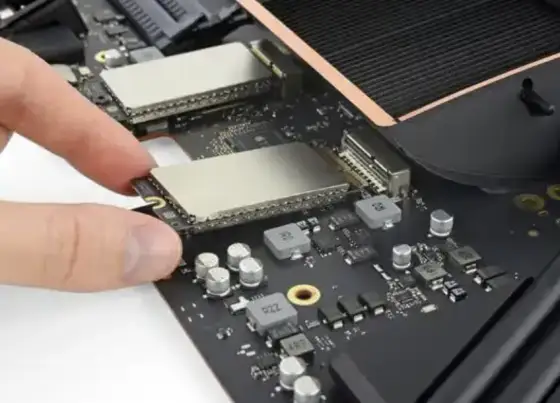
Check the exact supported drive interface and serviceability of the device.
Open representative files using current software and inspect images and embedded content.
List the data locations and the recovery copy responsible for each one.
Give each person a clear folder location and private access where needed.
Choose protection that matches the data sensitivity and the people who need recovery access.
Stop unnecessary use and prioritize a copy of irreplaceable readable files.
Add the new device and confirm that old folders have not been silently excluded.